
Managing Bookings as a Dipsea Vendor
Once your listings are live and travelers start booking, you manage everything from the Dipsea vendor app. This guide walks through the main screens in the vendor dashboard and what each one does.
The Vendor App Navigation
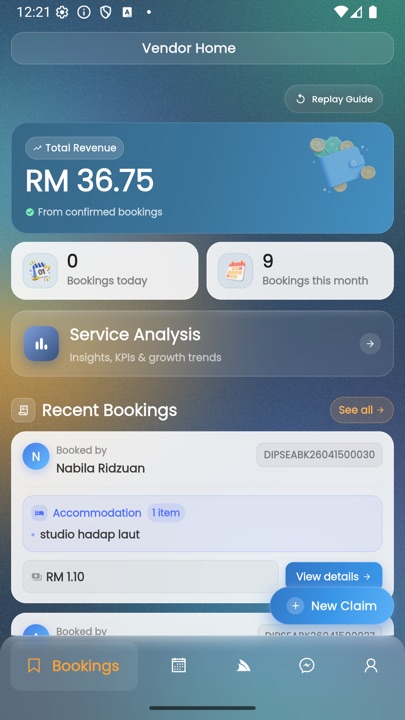
The bottom navigation bar has five tabs:
- Bookings — all incoming reservations
- Schedule — calendar view of confirmed bookings
- Services — your listings (add, edit, set availability)
- Chat — messages from customers
- Account — profile, bank details, claims, logout
Bookings
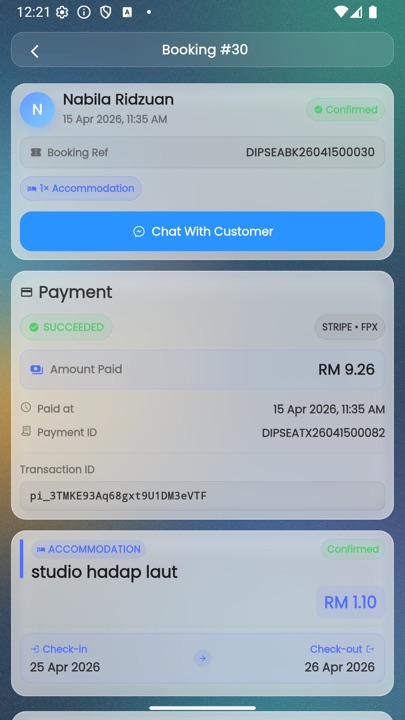
When a traveler books your service, you get a push notification and a new card appears in the Bookings tab. Each booking card shows:
- Customer name and contact
- Service and date(s) booked
- Amount paid and payment status
- Booking reference number and transaction ID
Tap a booking to view full details, message the customer, or mark the trip complete after delivery.
Schedule Calendar
The Schedule tab shows all your confirmed bookings on a calendar so you can see your availability at a glance. Use this view to plan staff, clean rooms, or arrange transport.
Setting Availability
If a room is under maintenance, or your boat is grounded for service, block out those dates so new bookings can't be made:
- Go to the Services tab.
- Tap Set Availability on the listing card.
- Select the unavailable dates on the calendar.
- Save.
Chatting with Customers
Every booking has a dedicated chat thread. Use it to coordinate arrival times, answer questions about your service, or send useful information (jetty directions, contact numbers, what to bring). Keeping conversation inside the Dipsea app means we have a record if anything needs to be reviewed later.
Claims and Issues
If a booking runs into a problem — no-show, damage, refund request — go to Account → Claims to open a claim. Provide:
- Booking reference
- Brief description of the issue
- Any photo evidence (if relevant)
Dipsea support reviews each claim and responds within two working days.
Revenue Dashboard
The homepage of the vendor app shows your key numbers at a glance:
- Total revenue this month
- Bookings today
- Bookings this month
- Payout status (pending / processing / paid)
Updating Your Profile
Go to Account → Profile to update your business name, contact info, and bank details. Changes to your bank account may require reverification before your next payout.
Vendor Support
If you need help, tap Vendor Support from your account menu, or email hello@dipseaisland.com. Support is available in both Malay and English.